Excel Image Sizes Guide: HD, Full HD, 4K, and A3/A4/A5 Uses
A concise guide to common display and paper sizes for Excel tables—what each size is best for and when to use them.
Choosing the right image size is essential for clarity, readability, and consistent presentation across screens and print. For Excel tables, size affects the legibility of text, grid lines, and the overall layout rhythm.
This guide explains common display and paper sizes, what each is best for, and when to use them. At the end, you’ll find a short note on exporting your Excel image once you’ve chosen the right size.
Why Image Size Choice Matters
Selecting an appropriate image size helps you:
- Maximize legibility: Keep text and grid lines crisp at the expected viewing distance.
- Match the medium: Align with screen resolutions or paper dimensions without awkward scaling.
- Control file size: Balance clarity with faster loading and easier distribution.
Common Image and Paper Sizes
Below are widely used sizes for display and print to help you choose confidently.
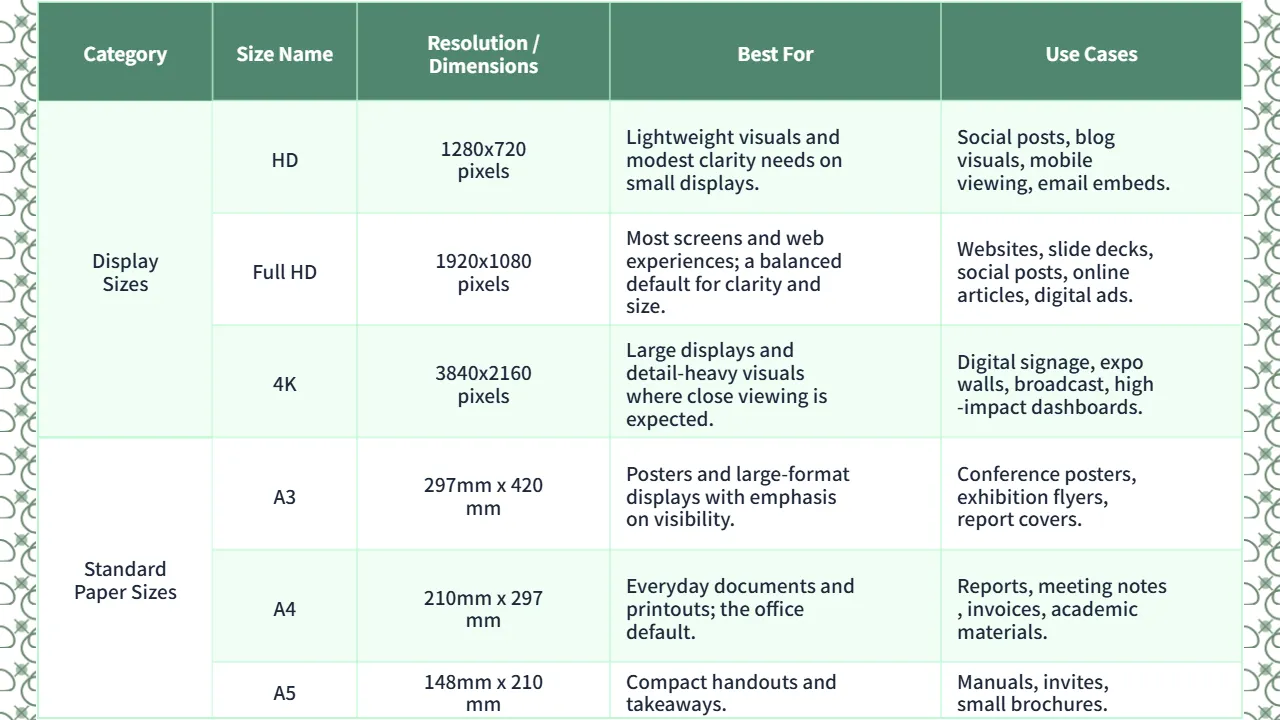
Display Sizes
HD (720p)
- Resolution: 1280×720 pixels
- Best For: Lightweight visuals and modest clarity needs on small displays.
- Use Cases: Social posts, blog visuals, mobile viewing, email embeds.
Full HD (1080p)
- Resolution: 1920×1080 pixels
- Best For: Most screens and web experiences; a balanced default for clarity and size.
- Use Cases: Websites, slide decks, social posts, online articles, digital ads.
4K
- Resolution: 3840×2160 pixels
- Best For: Large displays and detail‑heavy visuals where close viewing is expected.
- Use Cases: Digital signage, expo walls, broadcast, high‑impact dashboards.
Standard Paper Sizes
A3
- Dimensions: 297 mm × 420 mm
- Best For: Posters and large-format displays with emphasis on visibility.
- Use Cases: Conference posters, exhibition flyers, report covers.
A4
- Dimensions: 210 mm × 297 mm
- Best For: Everyday documents and printouts; the office default.
- Use Cases: Reports, meeting notes, invoices, academic materials.
A5
- Dimensions: 148 mm × 210 mm
- Best For: Compact handouts and takeaways.
- Use Cases: Manuals, invites, small brochures.
How to Choose the Right Size
- Screen vs. print: Use pixel resolutions for screens; match paper dimensions for print.
- Viewing distance: Larger or closer viewing calls for higher resolution (e.g., 1080p or 4K).
- Aspect ratio & orientation: Keep the table readable in the target ratio (landscape vs. portrait).
- Text legibility: If the table includes small text or dense grids, prefer larger sizes.
- File size trade‑off: Higher resolution means larger files; balance clarity with portability.
- Platform requirements: Check specs for slides, intranet portals, or social channels.
- Brand consistency: Follow internal templates for margins, spacing, and layout rhythm.
Export from Excel in the Size You Chose (with TableVivid)
When you’re ready to export your Excel as an image in the size you selected, use TableVivid:
- Upload your workbook
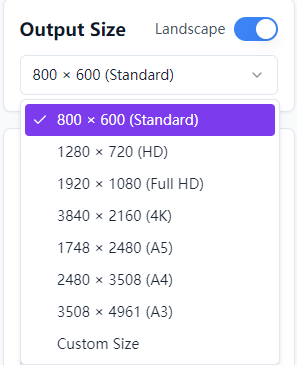
- Pick a preset (HD/1080p/4K/A3/A4/A5) or set a custom size
- Preview and fine‑tune table styling
- Download PNG/JPEG (or other formats)
Based on the overview of image sizes above, I used Excel together with TableVivid to create the following image for easy saving and sharing.
Visit TableVivid: https://tablevivid.com/